<?xml version="1.0" encoding="UTF-8"?>
<?xml-stylesheet href="/vendor/feed/atom.xsl" type="text/xsl"?>
<feed xmlns="http://www.w3.org/2005/Atom" xml:lang="en-US">
                        <id>https://www.samynitsche.de/feed</id>
                                <link href="https://www.samynitsche.de/feed" rel="self"></link>
                                <title><![CDATA[samynitsche.de - all blogposts]]></title>
                    
                                <subtitle>All blogposts from samynitsche.de</subtitle>
                                                    <updated>2024-01-15T15:40:00+00:00</updated>
                        <entry>
            <title><![CDATA[Fix Duplicate Ip Addresses When Working With Proxmox VM Templates]]></title>
            <link rel="alternate" href="https://www.samynitsche.de/6-fix-duplicate-ip-addresses-when-working-with-proxmox-vm-templates" />
            <id>https://www.samynitsche.de/6</id>
            <author>
                <name><![CDATA[Samuel Nitsche]]></name>
            </author>
            <summary type="html">
                <![CDATA[<h2 id="tldr">TLDR <a href="#tldr" class="permalink">#</a></h2>
<p>Make sure your vms have different mac addresses and machine ids. The machine id can be found in /etc/machine-id</p>
<hr />
<p>If you are working with vm templates in proxmox, chances are you have already experienced this issue: duplicate ip addresses when cloning your template.</p>
<p>In my case, my Unifi Dream Machine informed me about this issue. The first thing I did (and you probably would too) was checking the mac adresses of my vms. They were different, so I dug deeper and opened Google to see if someone else had this error too. And boy, there were tons of issues and tons of solutions.</p>
<p>Many of them sadly didn't work for me - so I googled further. And finally I found the solution (of course, on reddit, where else?).</p>
<p>Looks like Ubuntu (22.04?) uses the machine identifier (found in /etc/machine-id) as the dhcp identifier, not the mac address. I am not really sure why the machine id was the same on my clones, since I thought proxmox would clean it up when converting vms to templates.</p>
<h3 id="so-whats-the-solution">So, what's the solution? <a href="#so-whats-the-solution" class="permalink">#</a></h3>
<p>Glad you asked. You just need to truncate the /etc/machine-id file. Important: truncate, not delete!</p>
<p>In my case, I use cloud templates of Ubuntu. They are really nice to use since you can prepare things like ssh keys, network addresses, etc. relatively easily. Before creating my template, I already installed qemu-guest-agent into my cloud image.</p>
<p>I did this using the following command:</p>
<pre><code>virt-customize -a jammy-server-cloudimg-amd64.img --install qemu-guest-agent
</code></pre>
<p>I updated the command to not only install the guest agent but also truncate the machine id:</p>
<pre><code>virt-customize -a jammy-server-cloudimg-amd64.img --install qemu-guest-agent --truncate /etc/machine-id
</code></pre>
<h1 id="other-solutions">Other solutions? <a href="#other-solutions" class="permalink">#</a></h1>
<p>If the above solution does not work for you, there are other ways to fix this issue.</p>
<h2 id="change-the-dhcp-identifier">Change the dhcp identifier <a href="#change-the-dhcp-identifier" class="permalink">#</a></h2>
<p>To change the dhcp identifier, you need to update your netplan config.</p>
<pre><code>network:
  ethernets:
    enp0s3:
      dhcp4: true
      dhcp-identifier: mac
  version: 2
</code></pre>
<p>Of course, you should update the interface name.</p>
]]>
            </summary>
                                    <updated>2024-01-15T15:40:00+00:00</updated>
        </entry>
            <entry>
            <title><![CDATA[Install Jitsi Meet and Configure Load Balancing]]></title>
            <link rel="alternate" href="https://www.samynitsche.de/4-install-jitsi-meet-and-configure-load-balancing" />
            <id>https://www.samynitsche.de/4</id>
            <author>
                <name><![CDATA[Samuel Nitsche]]></name>
            </author>
            <summary type="html">
                <![CDATA[<h2 id="introduction">Introduction <a href="#introduction" class="permalink">#</a></h2>
<p>Jitsi Meet is an open-source (Apache) WebRTC JavaScript application that uses Jitsi Videobridge to provide high quality, secure and scalable video conferences. It can be used as a replacement for proprietary services like Zoom, Whereby, Teams, Skype and many others.</p>
<h2 id="requirements">Requirements <a href="#requirements" class="permalink">#</a></h2>
<ul>
<li>At least two Linux systems with Debian 10</li>
<li>DNS Record for your domain (in our case meet.example.com)</li>
</ul>
<h2 id="prepare-your-system">Prepare your system <a href="#prepare-your-system" class="permalink">#</a></h2>
<p>First of all we prepare our system by updating all package lists and packages. To do so run the following commands.</p>
<pre><code class="language-bash">apt update &amp;&amp; apt upgrade -y
</code></pre>
<h2 id="basic-jitsi-meet-installation">Basic Jitsi Meet installation <a href="#basic-jitsi-meet-installation" class="permalink">#</a></h2>
<p>Next, please be sure that your FQDN is configured correct.</p>
<pre><code class="language-bash">127.0.0.1 localhost meet.example.org
</code></pre>
<p>Verify the configuration by running <code>ping meet.example.com</code> and look for <code>127.0.0.1</code>.</p>
<h3 id="add-the-jitsi-repository">Add the Jitsi Repository <a href="#add-the-jitsi-repository" class="permalink">#</a></h3>
<pre><code class="language-bash">echo 'deb https://download.jitsi.org stable/' &gt;&gt; /etc/apt/sources.list.d/jitsi-stable.list
wget -qO -  https://download.jitsi.org/jitsi-key.gpg.key | apt-key add -
apt update
</code></pre>
<h3 id="install-nginx">Install nginx <a href="#install-nginx" class="permalink">#</a></h3>
<p>Jitsi will install and configure a webserver called Jetty when no nginx or apache server was detected during the installation. Since Jetty is java based and really slow we want to use nginx. Install it by running the following command.</p>
<pre><code class="language-bash">apt install nginx -y
</code></pre>
<h3 id="install-jitsi-meet">Install jitsi meet <a href="#install-jitsi-meet" class="permalink">#</a></h3>
<p>Now we are ready to install Jitsi Meet by running the following command. This will install all required components for Jitsi to work, including the web component, jicofo, jitsi-videobridge and much more.</p>
<pre><code class="language-bash">apt install jitsi-meet -y
</code></pre>
<p>During the installation, you will be asked to enter the FQDN of the Jitsi Meet instance. Please be sure to enter the correct hostname (in our case <code>meet.example.com</code>)</p>
<h3 id="generate-a-certificate">Generate a certificate <a href="#generate-a-certificate" class="permalink">#</a></h3>
<p>In order to have secure communication we need a TLS certificate. Luckily Jitsi Meet makes this very easy. Simply run the following command, enter a valid email address and wait until the script finished.</p>
<pre><code class="language-bash">/usr/share/jitsi-meet/scripts/install-letsencrypt-cert.sh
</code></pre>
<p>At this point we are already able to use Jitsi Meet. You can even test it by navigating to the hostname of your Jitsi Meet instance (in our case <code>meet.example.com</code>)</p>
<h2 id="load-balancing">Load Balancing <a href="#load-balancing" class="permalink">#</a></h2>
<p>Now the interesting part begins. Jitsi Meet on a single machine is fine if you only have a few videostreams but at some point your single instance may get too busy to handle all meetings on its own.</p>
<p>Please open the file <code>/etc/jitsi/videobridge/sip-communicator.properties</code>. It should look similar to this.</p>
<pre><code class="language-bash">org.ice4j.ice.harvest.DISABLE_AWS_HARVESTER=true
org.ice4j.ice.harvest.STUN_MAPPING_HARVESTER_ADDRESSES=meet-jit-si-turnrelay.jitsi.net:443
org.jitsi.videobridge.ENABLE_STATISTICS=true
org.jitsi.videobridge.STATISTICS_TRANSPORT=muc
org.jitsi.videobridge.xmpp.user.shard.HOSTNAME=localhost
org.jitsi.videobridge.xmpp.user.shard.DOMAIN=auth.meet.example.com
org.jitsi.videobridge.xmpp.user.shard.USERNAME=jvb
org.jitsi.videobridge.xmpp.user.shard.PASSWORD=7sM1g8yw
org.jitsi.videobridge.xmpp.user.shard.MUC_JIDS=JvbBrewery@internal.auth.meet.example.com
org.jitsi.videobridge.xmpp.user.shard.MUC_NICKNAME=728f25ec-a170-40f5-a7f1-b4f7b9d8c98a
</code></pre>
<p>Please add the following lines to the end of this file.</p>
<pre><code class="language-bash">org.jitsi.videobridge.DISABLE_TCP_HARVESTER=true
org.jitsi.videobridge.xmpp.user.shard.DISABLE_CERTIFICATE_VERIFICATION=true
</code></pre>
<p>In addition, please change the line <code>org.jitsi.videobridge.xmpp.user.shard.MUC_NICKNAME</code> to this.</p>
<pre><code class="language-bash">org.jitsi.videobridge.xmpp.user.shard.MUC_NICKNAME=jvb1
</code></pre>
<h3 id="configure-the-second-machine">Configure the second machine <a href="#configure-the-second-machine" class="permalink">#</a></h3>
<p>Please connect to the second machine, add the required repositories and install jitsi-videobridge by running the following commands.</p>
<pre><code class="language-bash">echo 'deb https://download.jitsi.org stable/' &gt;&gt; /etc/apt/sources.list.d/jitsi-stable.list
wget -qO -  https://download.jitsi.org/jitsi-key.gpg.key | apt-key add -
apt update
apt install jitsi-videobridge2 -y
</code></pre>
<p>Again, you will be asked for the hostname of your installation. Please enter the FQDN of the first machine (in our case <code>meet.example.com</code>)</p>
<p>Next, also open the file <code>/etc/jitsi/videobridge/sip-communicator.properties</code> and add the following lines to the end.</p>
<pre><code class="language-bash">org.jitsi.videobridge.DISABLE_TCP_HARVESTER=true
org.jitsi.videobridge.xmpp.user.shard.DISABLE_CERTIFICATE_VERIFICATION=true
</code></pre>
<p>Find the line <code>org.jitsi.videobridge.xmpp.user.shard.HOSTNAME</code> and set it to the public ip address of the first machine.</p>
<pre><code class="language-bash">- org.jitsi.videobridge.xmpp.user.shard.HOSTNAME=localhost
+ org.jitsi.videobridge.xmpp.user.shard.HOSTNAME=&lt;public ip address&gt;
</code></pre>
<p>In addition, please change the line <code>org.jitsi.videobridge.xmpp.user.shard.MUC_NICKNAME</code> to this.</p>
<pre><code class="language-bash">org.jitsi.videobridge.xmpp.user.shard.MUC_NICKNAME=jvb2
</code></pre>
<h3 id="get-the-credentials">Get the credentials <a href="#get-the-credentials" class="permalink">#</a></h3>
<p>On the first machine, please open the file <code>/etc/jitsi/videobridge/config</code> and find the line <code>JVB_SECRET</code>. Copy the password and go back to the second machine.</p>
<p>Replace the passwords in the following two files by the password you just copied.</p>
<pre><code class="language-bash">/etc/jitsi/videobridge/config
/etc/jitsi/videobridge/sip-communicator.properties
</code></pre>
<p>Now restart both machines and take a look at the log files located in <code>/var/log/jitsi/</code>.</p>
<p>You should find similar lines to thes in the <code>jicofo.log</code> file.</p>
<pre><code class="language-bash">Jicofo 2020-03-28 14:37:02.928 INFO: [29] org.jitsi.jicofo.xmpp.BaseBrewery.processInstanceStatusChanged().329 Added brewery instance: jvbbrewery@internal.auth.meet.example.com/jvb2
Jicofo 2020-03-28 14:37:02.928 INFO: [29] org.jitsi.jicofo.bridge.BridgeSelector.log() Added videobridge: jvbbrewery@internal.auth.meet.example.com/jvb2 v: null
Jicofo 2020-03-28 14:37:02.929 WARNING: [29] org.jitsi.jicofo.bridge.BridgeSelector.log() No pub-sub node mapped for jvbbrewery@internal.auth.meet.example.com/jvb2
Jicofo 2020-03-28 14:37:02.950 INFO: [44] org.jitsi.jicofo.bridge.JvbDoctor.log() Scheduled health-check task for: jvbbrewery@internal.auth.meet.example.com/jvb2
</code></pre>
<p>You can repeat this for as many machines as you want.</p>
<p>At this point you have successfully configured Jitsi Meet with load balancing. To ensure that load balancing works please start multiple meetings and monitor <code>jicofo.log</code>. You should find a line similar to this one.</p>
<pre><code class="language-bash">Using jvbbrewery@internal.auth.meet.example.com/jvb2 to allocate channels for: Participant[testmeeting@conference.meet.example.com/b4144338]@469524696
</code></pre>
<p>If you have any questions about the setup or difficulties following it, please feel free to contact me.</p>
]]>
            </summary>
                                    <updated>2020-08-10T11:57:45+00:00</updated>
        </entry>
            <entry>
            <title><![CDATA[Monitoring Proxmox With Prometheus and Grafana]]></title>
            <link rel="alternate" href="https://www.samynitsche.de/3-monitoring-proxmox-with-prometheus-and-grafana" />
            <id>https://www.samynitsche.de/3</id>
            <author>
                <name><![CDATA[Samuel Nitsche]]></name>
            </author>
            <summary type="html">
                <![CDATA[<p>Proxmox itself has a very good interface to monitor all kinds of resources like virtual machines, containers and storages. Because I use prometheus and grafana for other services, I decided to also use it for proxmox. Let's dive right into the installation.</p>
<p><strong>Note:</strong>
This tutorial was written for Proxmox 7. While most of the commands should't change, there may be some differences between major versions. If you encouter any problems while following the tutorial, contact me and I will update the tutorial.</p>
<h2 id="install-prometheus">Install prometheus <a href="#install-prometheus" class="permalink">#</a></h2>
<h3 id="step-1-create-a-user">Step 1: Create a user <a href="#step-1-create-a-user" class="permalink">#</a></h3>
<p>First of all we create a dedicated user for prometheus. This way we have a better encapsulation of the services.</p>
<pre><code class="language-bash">groupadd --system prometheus
useradd -s /sbin/nologin --system -g prometheus prometheus
</code></pre>
<p>This user does not need any shell, that's why we added the <code>-s /sbin/nologin</code> flag.</p>
<h3 id="step-2-create-directories-for-data-and-configuration">Step 2: Create directories for data and configuration <a href="#step-2-create-directories-for-data-and-configuration" class="permalink">#</a></h3>
<p>Next, we create the required folders for Prometheus in order to store data and configuration files.</p>
<pre><code class="language-bash">mkdir /var/lib/prometheus
for i in rules rules.d files_sd; do mkdir -p /etc/prometheus/${i}; done
</code></pre>
<h3 id="step-3-download-and-install-prometheus">Step 3: Download and install prometheus <a href="#step-3-download-and-install-prometheus" class="permalink">#</a></h3>
<p>Now we are ready to download the latest release of Prometheus directly from Github.</p>
<pre><code class="language-bash">mkdir -p /tmp/prometheus &amp;&amp; cd /tmp/prometheus
curl -s https://api.github.com/repos/prometheus/prometheus/releases/latest \
  | grep browser_download_url \
  | grep linux-amd64 \
  | cut -d '&quot;' -f 4 \
  | wget -qi -
</code></pre>
<p>We have to extract the file and move all files to the correct directory.</p>
<pre><code class="language-bash">tar xvf prometheus*.tar.gz
cd prometheus*/
mv prometheus promtool /usr/local/bin/
mv prometheus.yml  /etc/prometheus/prometheus.yml
mv consoles/ console_libraries/ /etc/prometheus/
</code></pre>
<p>Cleanup the /tmp directory.</p>
<pre><code class="language-bash">cd ~/
rm -rf /tmp/prometheus
</code></pre>
<h3 id="step-4-create-a-systemd-configuration-file">Step 4: Create a systemd configuration file <a href="#step-4-create-a-systemd-configuration-file" class="permalink">#</a></h3>
<p>We want to manage Prometheus with systemd. Therefore we have to create a config file using the following command.</p>
<pre><code class="language-bash">tee /etc/systemd/system/prometheus.service&lt;&lt;EOF

[Unit]
Description=Prometheus
Documentation=https://prometheus.io/docs/introduction/overview/
Wants=network-online.target
After=network-online.target

[Service]
Type=simple
User=prometheus
Group=prometheus
ExecReload=/bin/kill -HUP $MAINPID
ExecStart=/usr/local/bin/prometheus \
  --config.file=/etc/prometheus/prometheus.yml \
  --storage.tsdb.path=/var/lib/prometheus \
  --web.console.templates=/etc/prometheus/consoles \
  --web.console.libraries=/etc/prometheus/console_libraries \
  --web.listen-address=0.0.0.0:9090 \
  --web.external-url=

SyslogIdentifier=prometheus
Restart=always

[Install]
WantedBy=multi-user.target
EOF
</code></pre>
<p>Once you did this, set the correct file permissions and start Prometheus.</p>
<pre><code class="language-bash">for i in rules rules.d files_sd; do chown -R prometheus:prometheus /etc/prometheus/${i}; done
for i in rules rules.d files_sd; do chmod -R 775 /etc/prometheus/${i}; done
chown -R prometheus:prometheus /var/lib/prometheus/
</code></pre>
<pre><code class="language-bash">systemctl daemon-reload
systemctl start prometheus
systemctl enable prometheus
</code></pre>
<p>This is all we have to do in order to get Prometheus up and running. In the next step we install and configure the proxmox-pve-exporter.</p>
<h2 id="install-proxmox-pve-exporter">Install proxmox-pve-exporter <a href="#install-proxmox-pve-exporter" class="permalink">#</a></h2>
<p>As the name already indicates, the proxmox-pve-exporter scrapes data from the proxmox api and provides it to prometheus.</p>
<h3 id="step-1-install-proxmox-pve-exporter">Step 1: Install proxmox-pve-exporter <a href="#step-1-install-proxmox-pve-exporter" class="permalink">#</a></h3>
<p>If you haven't it already installed, install python and pip using the following command.</p>
<pre><code class="language-bash">apt install python3 python3-pip
</code></pre>
<p>Once this command has finished we are ready to install the proxmox-pve-exporter via pip.</p>
<pre><code class="language-bash">pip3 install prometheus-pve-exporter
</code></pre>
<h3 id="step-2-create-an-authentication-file">Step 2: Create an authentication file <a href="#step-2-create-an-authentication-file" class="permalink">#</a></h3>
<p>In order for proxmox-pve-exporter to connect to the Proxmox api we need to create a file with the credentials.</p>
<pre><code class="language-bash">nano /etc/prometheus/pve.yml
</code></pre>
<p>Paste the following lines into the file and <strong>be sure to replace the credentials with yours.</strong></p>
<pre><code class="language-bash">default:
    user: user@pve
    password: your_password_here
    verify_ssl: false
</code></pre>
<p><strong>Note:</strong> If you encounter any issue with authentication, please refer to the proxmox-pve-exporter docs.</p>
<p><a href="https://github.com/prometheus-pve/prometheus-pve-exporter#authentication" title="https://github.com/prometheus-pve/prometheus-pve-exporter#authentication">https://github.com/prometheus-pve/prometheus-pve-exporter#authentication</a></p>
<h3 id="step-3-create-a-systemd-configuration-file">Step 3: Create a systemd configuration file <a href="#step-3-create-a-systemd-configuration-file" class="permalink">#</a></h3>
<p>Like in the first chapter we need to create a systemd config file to control proxmox-pve-exporter.</p>
<pre><code class="language-bash">tee /etc/systemd/system/prometheus-pve-exporter.service&lt;&lt;EOF
[Unit]
Description=Prometheus exporter for Proxmox VE
Documentation=https://github.com/znerol/prometheus-pve-exporter

[Service]
Restart=always
User=prometheus
ExecStart=/usr/local/bin/pve_exporter /etc/prometheus/pve.yml

[Install]
WantedBy=multi-user.target
EOF
</code></pre>
<p>Enable the service by running the following commands.</p>
<pre><code class="language-bash">systemctl daemon-reload
systemctl start prometheus-pve-exporter
systemctl enable prometheus-pve-exporter
</code></pre>
<h3 id="step-4-add-proxmox-pve-exporter-to-prometheus">Step 4: Add proxmox-pve-exporter to prometheus <a href="#step-4-add-proxmox-pve-exporter-to-prometheus" class="permalink">#</a></h3>
<p>Now we have to add proxmox-pve-exporter to prometheus.</p>
<pre><code class="language-bash">nano /etc/prometheus/prometheus.yml

- job_name: 'proxmox'
  metrics_path: /pve
  static_configs:
  - targets: ['localhost:9221']
</code></pre>
<p>Save the file and restart prometheus.</p>
<pre><code class="language-bash">systemctl restart prometheus
</code></pre>
<h2 id="install-grafana">Install grafana <a href="#install-grafana" class="permalink">#</a></h2>
<p>In all previous steps we started collecting data from our system. Now we need to install grafana to get a beautiful overview of all the data.</p>
<h3 id="step-1-install-grafana">Step 1: Install Grafana <a href="#step-1-install-grafana" class="permalink">#</a></h3>
<p>First of all, add the following line to <code>/etc/apt/sources.list.d/grafana.list</code></p>
<pre><code class="language-bash">deb https://packages.grafana.com/oss/deb stable main
</code></pre>
<p>Now we have to install the proper key.</p>
<pre><code class="language-bash">curl https://packages.grafana.com/gpg.key | apt-key add - 
</code></pre>
<p>Update the apt index and install grafana.</p>
<pre><code class="language-bash">apt update &amp;&amp; apt install -y apt-transport-https grafana
</code></pre>
<p>Once grafana was installed, enable it and check if it is running.</p>
<pre><code class="language-bash">systemctl enable --now grafana-server
</code></pre>
<pre><code class="language-bash">systemctl status grafana-server.service
</code></pre>
<h3 id="step-2-test-the-installation">Step 2: Test the installation <a href="#step-2-test-the-installation" class="permalink">#</a></h3>
<p>Grafana was successfully installed. Open up your browser and navigate to <code>http://ipaddress:3000</code> and login with the default credentials.</p>
<pre><code>username: admin
password: admin
</code></pre>
<h3 id="step-3-add-the-prometheus-data-source">Step 3: Add the Prometheus data source <a href="#step-3-add-the-prometheus-data-source" class="permalink">#</a></h3>
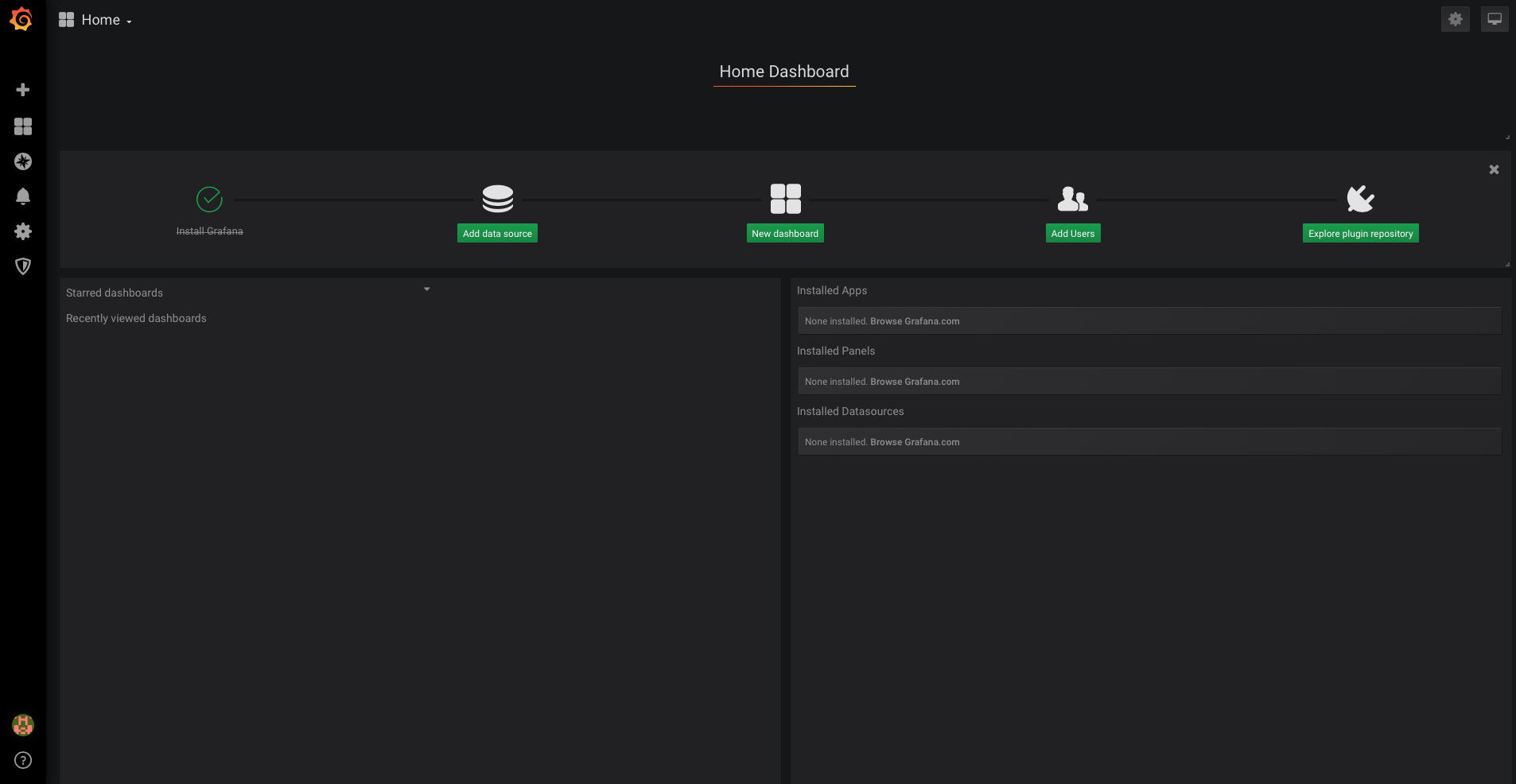
<p>After logging into grafana, click on &quot;Add data source&quot;.</p>
<p><img src="https://samynitsche.de/storage/2jUlCwxXSzaPsoaRen38ZOHru9JHNhEAqTojoNVd.png" alt="Add data source" /></p>
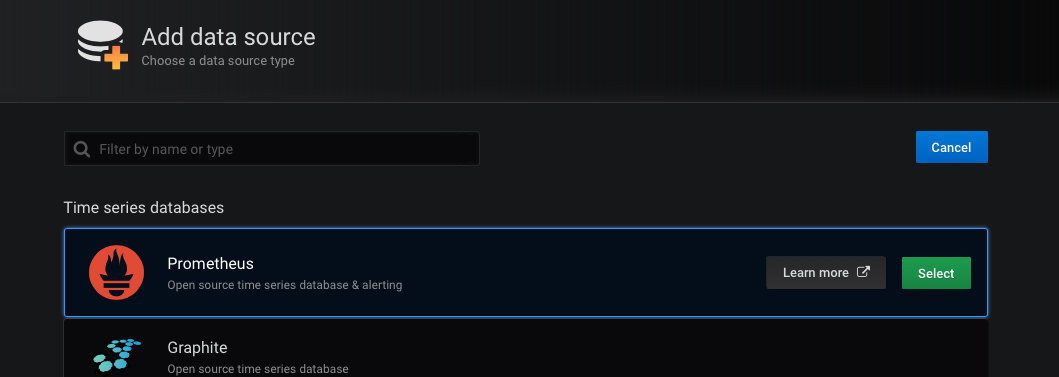
<p>Select &quot;Prometheus&quot; as template.</p>
<p><img src="https://samynitsche.de/storage/RjTwjC1kWdjHB88CAMZZHQUY5lDsnXJ87bPi2hL7.png" alt="Select prometheus template" /></p>
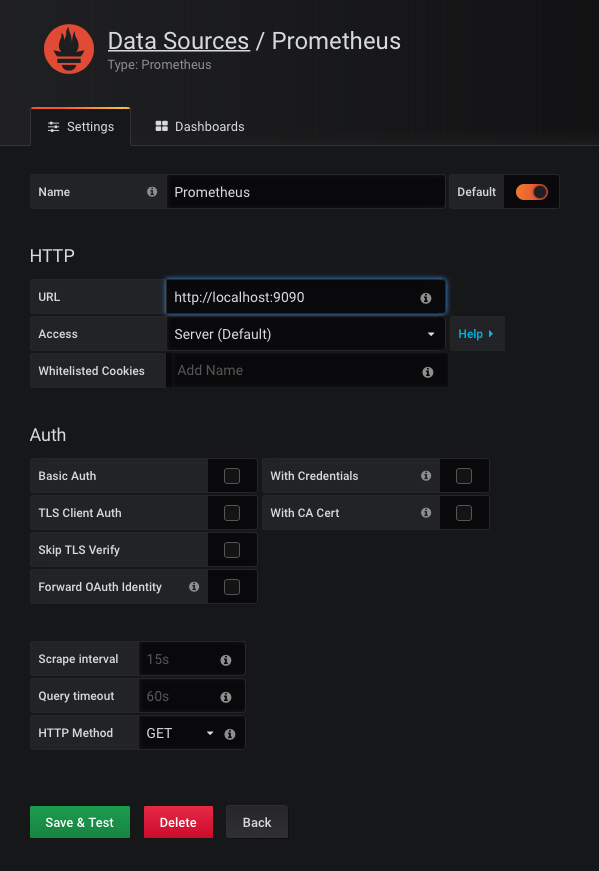
<p>When adding the data source, be sure to select the URL from the dropdown. Click on &quot;Save &amp; Test&quot;.</p>
<p><img src="https://samynitsche.de/storage/vkDuS4ynXfcVbC2Y5qMMWDq5qO0zy3N3d9WaE8Xc.png" alt="Select the correct url" /></p>
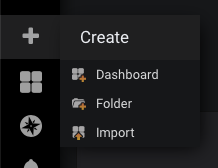
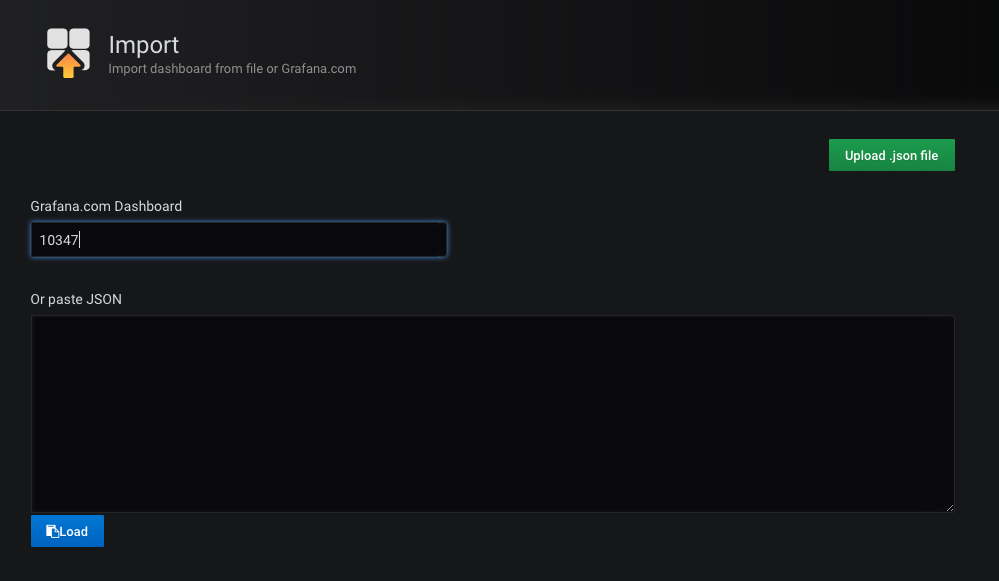
<p>Next, navigate to the sidebar select &quot;Create&quot; -&gt; &quot;Import&quot;.</p>
<p><img src="https://samynitsche.de/storage/eTIGrQIVhNzKNykH5JgEBbCivofQff9Q7RxCXJ8R.png" alt="Navigate to &quot;Create&quot; -&gt; &quot;Import&quot;" /></p>
<p>In this step, Grafana asks you for a dashboard. Luckily, Pietro Saccardi already created a nice dashboard that we can use to display our data. Paste in the dashboard id (10347) and click on &quot;Load&quot;.</p>
<p><img src="https://samynitsche.de/storage/XEwR9bqm1q5ixSAUFeiaZV7oT1SyH9oAZZyzZKdm.png" alt="Load the dashboard" /></p>
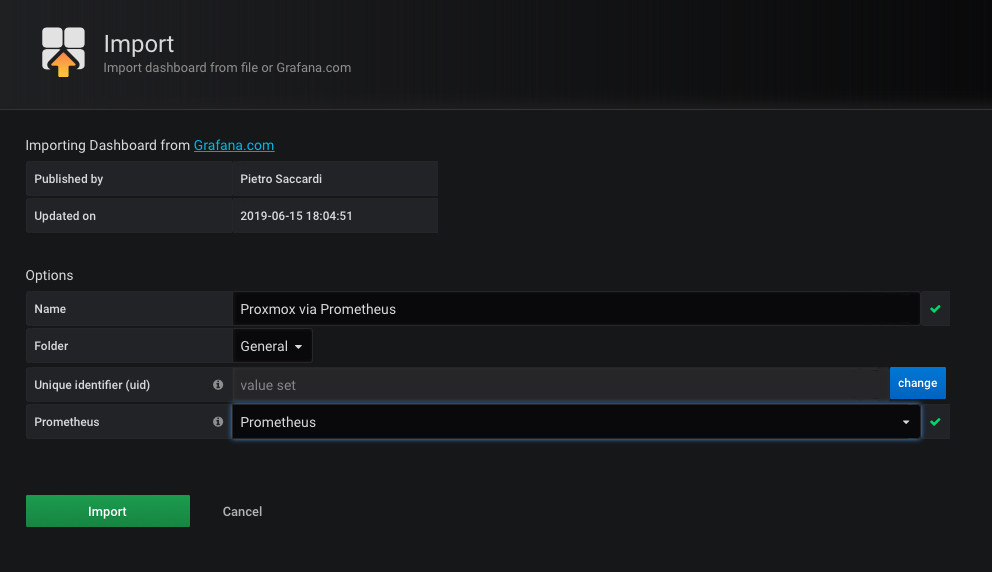
<p>In the last step, select &quot;Prometheus&quot; from the dropdown menu and click on &quot;Import&quot;.</p>
<p><img src="https://samynitsche.de/storage/1CNdYsZdAjMYcOYgXbbZhJW2um7Mvd6gTgyCVN4r.png" alt="Select prometheus from the dropdown" /></p>
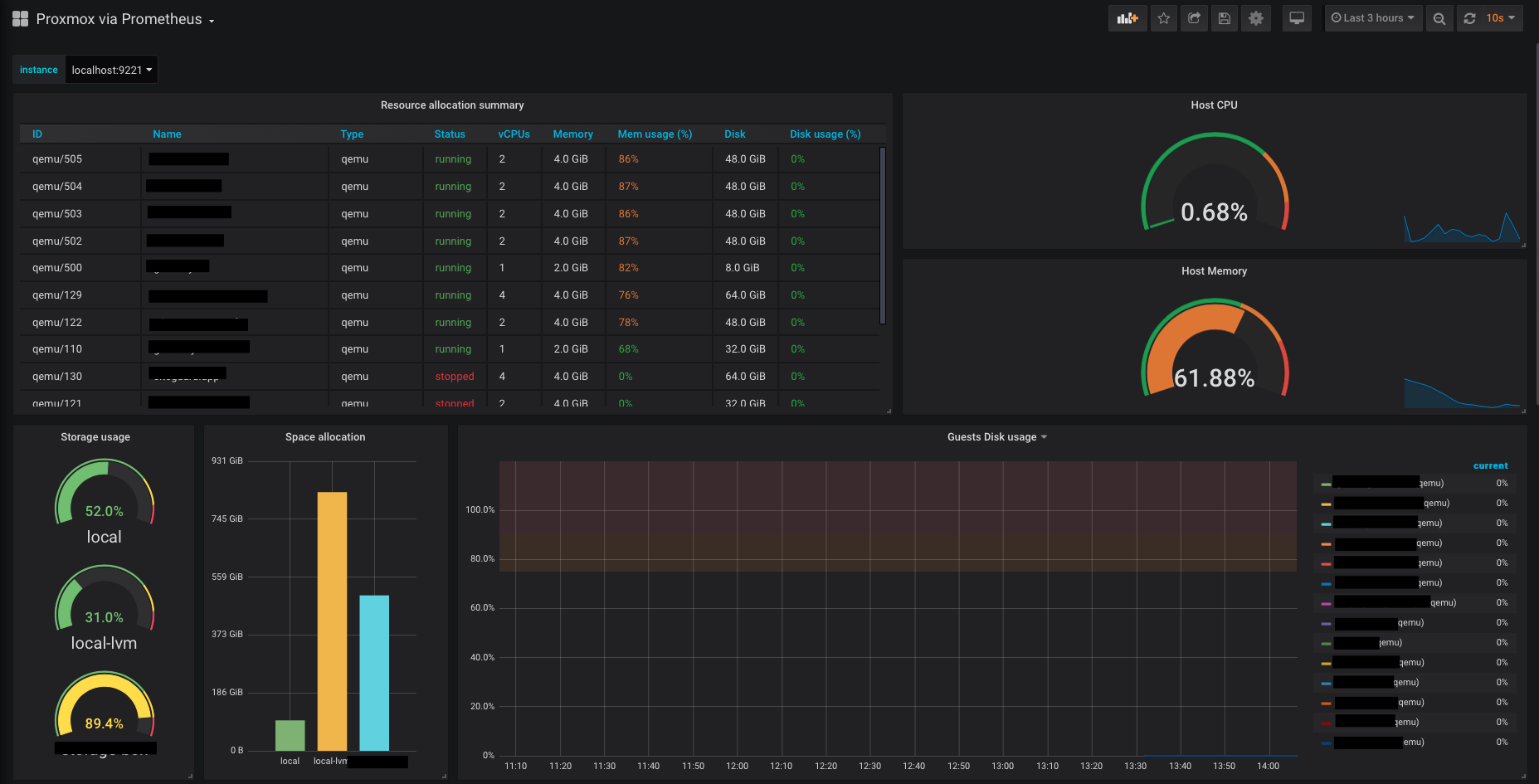
<p>And this is what our new Grafana dashboard look like! Isn't it nice?</p>
<p><img src="https://samynitsche.de/storage/s9lHBHxImB6riCYBTG4rXt6B7n0uWQG4tr4AJaIr.png" alt="Finished dashboard" /></p>
<h2 id="security">Security <a href="#security" class="permalink">#</a></h2>
<p>One thing you may noticed while reading this blog post is the following. We have a couple of endpoints that are available for everyone using a webbrowser. Although these endpoints do not leak highly sensitive information, I encourage you to block these ports for the rest of the world using a firewall like <code>ufw</code>.</p>
<h2 id="conclusion">Conclusion <a href="#conclusion" class="permalink">#</a></h2>
<p>With not too much effort we were able to install a beautiful monitoring dashboard using Prometheus, proxmox-pve-exporter and Grafana. Special thanks goes to <a href="https://grafana.com/orgs/spak">Pietro Saccardi</a>, who built this amazing Grafana dashboard (which saves us a <strong>lot</strong> of work!).</p>
<p>If you have any questions or problems following this post, please feel free to contact me.</p>
]]>
            </summary>
                                    <updated>2020-08-09T17:28:56+00:00</updated>
        </entry>
            <entry>
            <title><![CDATA[Mix Static and Dhcp Addresses on the Same Interface in Ubuntu 18.04]]></title>
            <link rel="alternate" href="https://www.samynitsche.de/2-mix-static-and-dhcp-addresses-on-the-same-interface-in-ubuntu-1804" />
            <id>https://www.samynitsche.de/2</id>
            <author>
                <name><![CDATA[Samuel Nitsche]]></name>
            </author>
            <summary type="html">
                <![CDATA[<p>Ubuntu 18.04 uses netplan to configure the network. All my servers run behind an OPNSense Firewall that runs a DHCP server for IPv4 and has static leases applied.</p>
<p>Since I don't run a IPv6 DHCP server, I have to configure IPv6 manually on all my servers. I did some research to figure out how to get it working with netplan. And guess what, it is easier than I thought.</p>
<pre><code>network:
  ethernets:
    ens18:
      dhcp4: yes
      dhcp6: no
      addresses:
       - &lt;IPv6 address&gt;
      gateway6: &lt;IPv6 gateway address&gt;
  version: 2
</code></pre>
<p>I think the setup is pretty self explainary but let me explain it to you.
First we enable dhcp for IPv4 and disable dhcp for ipv6.</p>
<pre><code>dhcp4: yes
dhcp6: no
</code></pre>
<p>In the last step we apply the fixed ipv6 address and save the file. After a reboot, the server should have the correct ip addresses.
Terms</p>
]]>
            </summary>
                                    <updated>2019-05-22T13:12:59+00:00</updated>
        </entry>
            <entry>
            <title><![CDATA[Fix phpmyadmin]]></title>
            <link rel="alternate" href="https://www.samynitsche.de/1-fix-phpmyadmin" />
            <id>https://www.samynitsche.de/1</id>
            <author>
                <name><![CDATA[Samuel Nitsche]]></name>
            </author>
            <summary type="html">
                <![CDATA[<p>At the time of this writing the latest version of phpmyadmin contains a very annoying bug.
Luckily there is a really simple fix available for this issue.</p>
<p>I suggest you to backup the file <code>libraries/sql.lib.php</code> in the root directory of your phpmyadmin installation so you can restore it if anything goes wrong while running the following command.</p>
<pre><code>sudo sed -i &quot;s/|\s*\((count(\$analyzed_sql_results\['select_expr'\]\)/| (\1)/g&quot; /usr/share/phpmyadmin/libraries/sql.lib.php
</code></pre>
<p>This command fixes the syntax error in the given file. After this command finished successfully, reload phpmyadmin. If everything went right, the error is gone!</p>
]]>
            </summary>
                                    <updated>2019-05-06T13:12:59+00:00</updated>
        </entry>
    </feed>